
Blink Charging Mobile App
Blink ChargingAuto & Vehicles
3.91.94K Reviews
- Version
- 3.1.43
- Installs
- 100.00K
- Age Rating
- Everyone
Screenshots
Our Review of Blink Charging Mobile App
 Analysis by Appyee
Finding a public charger is one thing; finding one that works for your car, your route, your timing, and your own way of using a phone is another. I spent time with Blink Charging Mobile as an everyday electric-vehicle companion, paying particular attention to how easily a driver can search, interpret what is shown, and act on that information in different situations. It is a free Auto & Vehicles app from Blink Charging, aimed at making charger discovery less of a scavenger hunt.
My overall impression is practical rather than spectacular. The app can be useful when I want a Blink location in view before I leave, or when I need to make a quick charging decision away from home. Its biggest strength is focus: it puts EV charging at the center instead of burying it inside a broader travel or vehicle platform. Its biggest weakness is that a map alone cannot remove every uncertainty at a charging stop. The quality of the experience still depends on how clearly I can read the information, how much attention I have available, and whether the location suits my particular needs.
Readable navigation for a quick charging decision
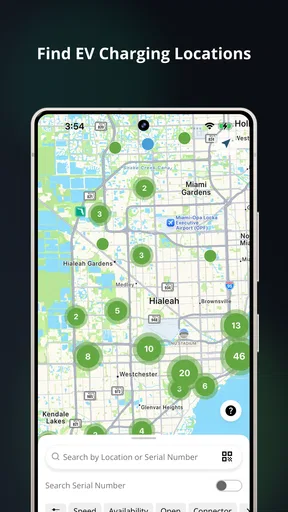
The first thing I look for in a charging app is not visual polish. I want to answer three questions without wandering through several screens: where is a charger, can I reasonably use it, and how much effort will it take to reach it? Blink Charging Mobile is built around that basic discovery task, which makes it easier to understand than an app that tries to be a complete driving assistant, payment wallet, trip planner, and vehicle dashboard at the same time.
That focused purpose matters for people who prefer a simple workflow. A driver who is already familiar with EV charging can open the app, search the surrounding area, and use the displayed locations as a starting point. Someone new to electric driving may also find the narrower scope less intimidating than a crowded automotive app filled with unrelated controls. I would still take a moment before driving to learn where the search and location controls are, because even a straightforward map becomes harder to use when I am rushed.
Map-based interfaces have an obvious readability challenge: they can become busy when several markers, roads, labels, and controls compete for attention. I found it more comfortable to make the search decision while parked rather than trying to interpret everything from the driver’s seat. This is not a criticism unique to Blink; it is a basic limitation of handling location information on a small screen. The app is most useful when I prepare the next stop before moving, then use a separate navigation tool if I need detailed turn-by-turn guidance.
The most useful habit is to treat the app as a charger-finding tool, not as something to operate while driving. Before leaving, I can check the area around my destination or along the next part of a journey. That small preparation step reduces the need to make fine visual judgments in traffic and gives me time to compare more than one possible stop.
Text size and contrast are especially important here. People with reduced vision, visual fatigue, or difficulty distinguishing small map details may find a dense location screen demanding. I appreciated the benefit of enlarging the phone’s system text where possible, but larger text can also change how much information fits on screen and may require more scrolling or zooming. That is a trade-off worth testing at home rather than discovering it beside a busy road.
Voice control can help with the physical act of opening or searching an app, but it does not automatically make a map understandable. A person who relies on spoken output may need to confirm how location results are announced by the phone’s assistive technology. I would not assume that every map detail, marker state, or charger distinction is equally clear through speech. For that reason, a companion, a passenger, or a pre-trip check can make the experience more dependable when visual information is difficult to process.
How I would use it before leaving home
My preferred workflow is deliberately short. I open the app while stationary, look for charging options near the place I expect to be, and note a backup area before starting the drive. If the journey is unfamiliar, I then move to the navigation app I normally trust for route guidance. This division of labor works better for me than expecting one charging application to handle every part of a trip.
There is also a useful planning distinction between “near me” and “useful for my day.” The closest marker may not be the best choice if it requires a difficult turn, a long walk to the destination, or an awkward return to the route. I use the map to generate candidates, then think about the surrounding context. That is particularly valuable for anyone who needs a nearby restroom, a sheltered waiting place, step-free access, or enough room to get out of the vehicle safely.
The app’s store rating sits at about 3.8 from roughly 6,700 ratings, with around 1,900 written reviews. I read that as a sign of a service people find useful but not universally effortless. It has passed the point of being an obscure experiment, with more than 100,000 installs, yet I would still judge it by the specific charging areas I use rather than by popularity alone.
Different bodies, senses, and attention needs
Charging is often described as a technology task, but it is also a physical one. A driver may need to park precisely, reach a connector, move around a vehicle, handle a cable, and wait in a particular environment. An app can support the information part of that process, but it cannot guarantee that the physical site will be comfortable or usable for every person. That distinction is central to my view of Blink Charging Mobile.
For someone with limited hand strength or restricted movement, the main benefit is advance knowledge. Finding a possible location before arriving gives the driver a chance to think through the stop instead of discovering the challenge after parking. I would use the app to identify options, then inspect the site context as carefully as possible through whatever location details are available and through a second source when the stop is important. The app can reduce uncertainty, but it cannot replace checking whether the cable position, parking layout, or walking distance works for a particular body.
People with hearing loss may appreciate that charger discovery is primarily visual rather than dependent on listening for an announcement. At the same time, visual information must be clear enough to distinguish a selected location from nearby alternatives. A driver who cannot rely on audio prompts should plan the route before moving and avoid making the phone the only source of direction.
For users with cognitive disabilities, attention differences, or anxiety around unfamiliar travel, a repeatable routine can make the app easier to manage. I would search one area at a time, choose a primary stop and a backup, and write down the decision before driving. That is more reliable than repeatedly reopening the map under pressure. The app’s focused purpose supports this routine, although a busy map can still create overload if I zoom out too far or try to compare too many places at once.
Motor accessibility also includes the small actions involved in map use: tapping a marker, dragging the map, zooming, and moving between information screens. Users with tremors or limited dexterity may find tiny controls less forgiving than a simple list. I would use a larger phone, a stable mount, or a passenger when available, and I would avoid attempting delicate map interactions while the car is moving. These are practical accommodations, not evidence that the app itself provides a specialized accessible mode.
One non-obvious advantage of planning in advance is emotional as well as physical. A driver who has previously arrived at an unsuitable station may feel comfortable only when a backup exists. I find that choosing an alternative before departure prevents a single unavailable or inconvenient location from turning into a crisis. Blink Charging Mobile is useful in that role because it gives me a dedicated place to begin the search, even though I may still verify the final choice elsewhere.
When the situation changes quickly
The app becomes more valuable when a normal plan breaks down. Imagine leaving work with less charge than expected, heavy rain beginning, and a need to stop somewhere unfamiliar. I would use the app while parked to find nearby possibilities, then consider which one adds the least stress to the journey. If I were traveling with a passenger who uses a wheelchair, had a child who needed a short break, or simply could not safely walk far, “closest” would not be enough. The surrounding environment would matter just as much as the marker on the map.
The same applies to night driving. A location that looks convenient in daylight may feel very different after dark, especially for someone who is hard of hearing, has low vision, or is uncomfortable waiting alone. I would use the app to identify choices before arriving, but I would not interpret a charger’s presence as proof that the stop has good lighting, shelter, seating, or an easy pedestrian route. Those are situational questions that require judgment beyond the basic discovery screen.
For long trips, I would also avoid planning the battery around a single app result. A better workflow is to identify a primary charging area, keep a second option in mind, and leave enough flexibility for a detour or a location that is occupied. This matters for everyone, but especially for drivers who need extra time or physical assistance at the stop. A rushed arrival can turn a manageable charging session into a difficult one.
Where the experience still creates barriers
The clearest limitation is the gap between finding a location and knowing whether it will work in real life. A map marker answers a geographic question, not every accessibility question. It may not tell me whether the route from the parking space is level, whether the cable can be reached from my vehicle’s charging port, or whether I can wait comfortably nearby. I therefore see Blink Charging Mobile as one layer of planning rather than a complete accessibility guide.
Another barrier is divided attention. Even a well-organized app is unsuitable for detailed browsing while driving. Drivers with slower reaction times, visual processing differences, or difficulty switching between tasks should be especially cautious about using it on the road. I would prepare before starting, use a passenger where possible, and rely on the phone’s normal navigation setup only after the charging decision is made.
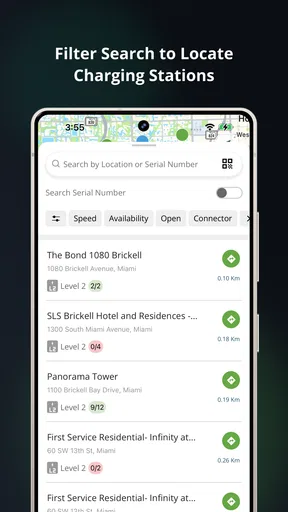
People who need highly predictable interfaces may also find map exploration less comfortable than a clearly ordered list. A list can be easier to scan with a screen reader or magnification, while a map may require more gestures and spatial interpretation. I would test the app with the accessibility settings I already use before depending on it for an unfamiliar trip. If those settings do not expose the needed location information in a comfortable way, a different charging directory or an ordinary web search may be a better companion.
There is a further trade-off between simplicity and completeness. Blink Charging Mobile’s dedicated focus keeps the purpose clear, but a broader EV platform may combine charging discovery with vehicle data, route planning, and other travel context. That can be convenient for drivers who want one central dashboard. On the other hand, broader apps often bring more menus and notifications, which may be harder for someone who values a quiet, single-purpose workflow. I would choose Blink for focused station discovery and a broader tool when I need a more integrated trip plan.
The app is also not the right choice for every driver. If I rarely use public charging, already have a dependable routine through my vehicle’s built-in system, or need detailed information about many charging networks in one place, another option may fit better. Likewise, someone who depends on highly specific accessibility details should not rely on this app alone. Its role is strongest when I need a practical starting point for locating charging possibilities, not when I expect it to certify the suitability of a physical site.
Version 3.1.39 is the current version I reviewed, and it requires Android 10 or later. That makes the operating-system requirement relevant for people using older phones, particularly anyone who keeps an older device in the car as a dedicated navigation screen. Before planning around it, I would check that the intended phone can install and run the app comfortably. A free app is of little help if the available device cannot support it or struggles with map interaction.
A useful tool when inclusion starts with preparation
Blink Charging Mobile earns a place on my phone because it makes one specific part of EV ownership easier: beginning the search for a public charger. I like that it is free, focused on Auto & Vehicles, rated for Everyone, and developed by Blink Charging. Its audience is broad, but the best experience comes from using it thoughtfully rather than expecting it to solve every part of a charging stop.
For me, the inclusive value is strongest before the journey begins. I can enlarge text, settle into a familiar search routine, compare a primary and backup area, and think about the physical setting before I am under time pressure. That preparation supports drivers with different visual, motor, hearing, and attention needs, even though the app should not be treated as proof that a particular charger is accessible.
I would recommend it to an EV driver who wants a dedicated way to look for Blink charging locations and is comfortable combining that search with normal navigation and personal judgment. I would be more cautious recommending it as the only tool for a long trip, a night-time stop, or a journey involving detailed mobility requirements. In those cases, I would pair it with route guidance and independent checks of the destination.
My final advice is simple: use the app while parked, decide what information you actually need, and plan for the real-world stop rather than only the map result. Blink Charging Mobile is most helpful when it reduces uncertainty early, not when it is asked to replace careful travel planning. Used that way, it is a sensible free companion for EV charging discovery, with clear practical value and equally clear limits for people who need more detailed support.
Privacy and Permissions
See what permissions an app requests and how it handles your data.
- Calendar
- read calendar events plus confidential information, add or modify calendar events and send email to guests without owners' knowledge
- Location
- approximate location (network-based), precise location (GPS and network-based)
- Photos/Media/Files
- read the contents of your USB storage, modify or delete the contents of your USB storage
- Storage
- read the contents of your USB storage, modify or delete the contents of your USB storage
- Camera
- take pictures and videos
- Wi-Fi connection information
- view Wi-Fi connections
- Other
- view network connections, change network connectivity, connect and disconnect from Wi-Fi, control flashlight, full network access, run at startup, control vibration, prevent device from sleeping, Google Play license check, read Google service configuration
Verdict
Strengths of Blink Charging Mobile App
- Find nearby Blink chargers using map and location filters.
- Start, stop, and monitor charging sessions from your phone.
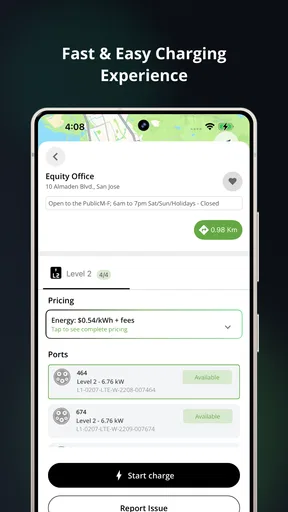
- View connector types, availability, and station details before arriving.
- Save favorite charging locations for quicker access.
- Manage payment methods and review charging session history.
Limitations of Blink Charging Mobile App
- Station availability may be outdated when chargers change status quickly.
- Pricing can vary by location and may not be clear until checkout.
- Some features depend on reliable GPS, mobile data, and Bluetooth access.
- Charging experiences differ between Blink-owned and partner stations.
- Account creation and payment setup are required for many app features.
Similar Picks in This Category
View All
Android Auto
Google LLC4.1

maxim — order a taxi & food
PT. SITO4.7

Штрафы ГИБДД: проверка с фото
Pays LLC – Штрафы ГИБДД4.7

Номерограм – проверка авто
Авто Ассист4.8

Дром Авто
Дром4.9

Frequently Asked Questions
What is the Blink Charging Mobile App used for?
The Blink Charging Mobile App helps electric vehicle drivers find and use compatible Blink charging stations. After creating an account, you can view chargers on a map, check station details and availability, start or stop charging sessions, and review charging activity. It is designed to make public EV charging easier, although the exact features and station information may vary by location.
Do I need an account to use the Blink Charging Mobile App?
An account is generally required for the complete Blink Charging experience, especially when you want to start charging sessions, save payment information, view charging history, or manage your profile. Registration usually involves providing basic personal details and setting up a payment method. Some station information may be visible without signing in, but access can be limited until you create an account.
How can I pay for a charging session through the app?
The Blink Charging Mobile App allows users to add and manage a payment method before beginning a charging session. Depending on your country, station, and account setup, available options may include a credit or debit card, a stored balance, or other supported payment services. Review the displayed pricing carefully, because energy rates, session fees, parking costs, and taxes can differ between stations.
Can the app show whether a Blink charger is available?
The app includes a map and station listings that can display charger locations, connector information, and reported availability. This is useful when planning a trip or choosing a nearby station. However, availability can change quickly if another driver arrives, a charger becomes occupied, or a technical issue occurs. It is wise to refresh the station details before driving there.
What should I do if a charging session will not start or the charger is unavailable?
If a session does not begin, first confirm that the connector is properly attached, the selected charger matches the station ID, and your payment method is valid. You can also close and reopen the app, refresh the station page, or try the station’s on-site instructions. If the problem continues, use the support options provided in the app and record the charger number and error message.
